We’ve all been there. You have got a browser open, a spreadsheet half finished, an email waiting for a reply, and a video call about to start. Suddenly, your laptop screen looks like a pile of overlapping windows. You are spending more time switching between them than actually getting work done.
That’s where a portable monitor for laptop setups can make a real difference. A slim, lightweight second display gives you extra workspace without requiring a bulky desktop monitor or a permanent workstation. You can use it at home, in the office, at a coffee shop or even in a hotel room.
But is it really worth spending money on one? Will it work with your laptop? And is a laptop screen extender genuinely useful, or just another accessory that looks better in advertisements?
Let’s look at the benefits, limitations, compatibility requirements and a few real products before you decide.
Quick Answer: Is a Portable Laptop Monitor Worth It?
Yes, if you regularly multitask, work remotely, travel for business or spend a lot of time switching between applications. A portable computer monitor gives you room to keep documents, emails, spreadsheets or reference material open while working on your main laptop screen.
Maybe not, if you mostly browse the internet, watch videos or handle basic tasks. Your laptop’s built-in display may already be enough. The same applies if you work at a fixed desk and own a comfortable external monitor.
One thing is worth checking before anything else: compatibility. Not every USB-C port supports video output, and some portable monitors need a separate power source.
What Is a Portable Laptop Monitor?
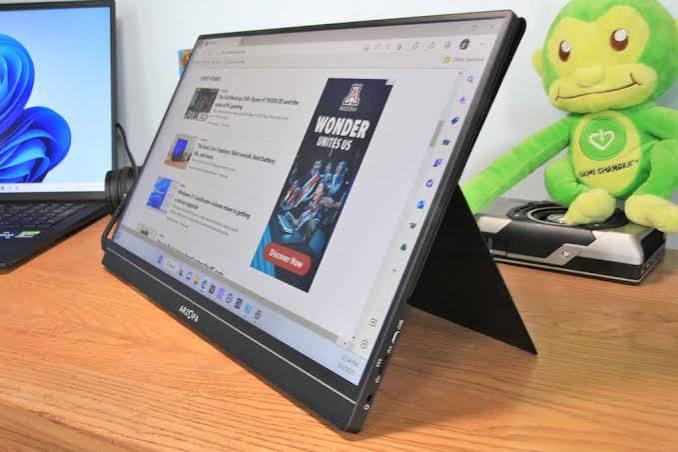
A portable laptop monitor is a slim external display designed to travel with your laptop. It is generally lighter and smaller than a traditional desktop monitor and often comes with a folding cover, kickstand or built-in support.
Most models connect through USB-C or HDMI, although some also support DisplayLink technology.
Think of it as an extra screen rather than a replacement for your laptop display. You can keep your main task on the laptop and move secondary work to the portable screen.
For example, you could write a report on your laptop while keeping research documents open on the second display. That small change can make working on a limited screen feel much less cramped.
Related: Here are What PC Do You Need to Run AI Models Offline?
1. How a Portable Monitor Gives Your Laptop More Screen Space
The biggest benefit is simple: more room to work.
Imagine writing an article while researching online. On a single screen, you keep switching between your writing app, browser, notes and reference files. With a dual screen laptop setup, your article can stay open on the laptop while your research sits on the portable monitor.
Different users benefit in different ways:
- Students: Keep online lectures, research papers and notes visible together.
- Remote workers: Manage video meetings, emails and documents without constantly changing windows.
- Writers and bloggers: Write on one screen and check sources on the other.
- Freelancers: Keep spreadsheets, design tools and client instructions within reach.
- Programmers: View code on one display and documentation or test results on the other.
A second screen won’t automatically make you more productive. You still need to manage your time and work properly. However, it can reduce unnecessary window switching, which is especially helpful during a busy workday.
2. Will a Portable Monitor Work With Your Laptop?
This is the part many buyers overlook, and it can cause the most frustration.
People often assume that every USB-C port on a laptop can connect to an external display. Unfortunately, that isn’t true. USB-C describes the connector, not every feature it supports. Some ports only transfer data or charge devices.
For a one-cable display connection, your laptop and monitor generally need compatible video support, such as DisplayPort Alternate Mode (DP Alt Mode) over USB-C or Thunderbolt.
Here’s how the common connection types compare:
| Connection | What you need to know |
|---|---|
| USB-C with DP Alt Mode | Can carry video and may also transfer power, depending on both devices |
| Thunderbolt | Supports compatible external displays and other connected devices |
| HDMI | Carries video, but the monitor may need a separate power connection |
| USB-A with DisplayLink | Can provide display output through compatible software and drivers; an adapter may also be required |
For example, two laptops can both have USB-C ports, but only one may support video output through that port. Check the manufacturer’s specifications for DisplayPort Alt Mode, Thunderbolt or compatible USB4 display support.
ASUS also explains these requirements in its USB-C portable monitor compatibility guide.
Before ordering, ask yourself:
- Does my laptop’s USB-C port support video output?
- Does it support DisplayPort Alt Mode?
- Does the monitor support USB-C Power Delivery?
- Do I need HDMI for an older laptop, console or camera?
- Will I need an adapter or docking station?
The simple rule: don’t buy a USB-C portable monitor just because your laptop has a USB-C socket. Confirm that the specific port supports video.
3. USB-C vs HDMI: Which Is Better for a Portable Monitor?
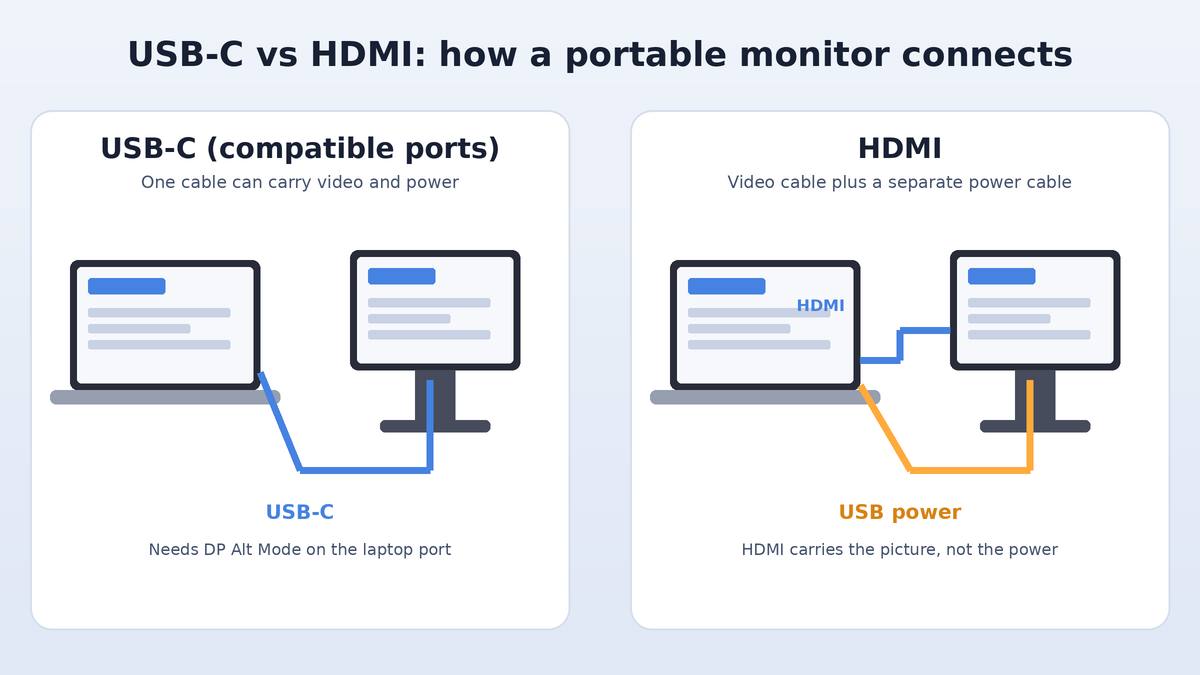
USB-C is usually the more convenient option. When both devices support the right features, one cable can carry video and power. That means fewer cables to manage when you’re working at a café table, in a hotel room or at a shared office desk.
HDMI is a useful alternative, particularly for older laptops and other devices. It carries the picture, but you’ll generally need another cable or adapter to power the monitor.
Here’s a quick comparison:
| Feature | USB-C | HDMI |
|---|---|---|
| Video output | Yes, with compatible support | Yes |
| Power through the same cable | Possible on compatible devices | No |
| Cable management | Usually simpler | May need an extra cable |
| Best for | One-cable laptop setups | Devices with HDMI output |
If you’re buying a portable monitor for long-term use, having both USB-C and HDMI can be helpful. It gives you more flexibility if you change laptops or connect other devices later.
4. How Much Power Does a Portable Monitor Use?
Here’s something first-time buyers don’t always expect: many portable monitors don’t have their own battery.
Instead, they draw power from your laptop or an external USB adapter. That means your laptop may be powering two displays at once. Depending on the monitor’s power consumption, brightness and your laptop, this can reduce battery life.
If you regularly work away from a power outlet, check these points:
- Does the monitor have a built-in battery?
- Can it draw power directly from your laptop?
- Does it need a separate USB-C power adapter?
- Can you run it from a compatible power bank?
- Does the manufacturer list a minimum power requirement?
There is another useful feature to look for: USB-C power pass-through.
If the monitor supports it, you can connect your laptop charger to the monitor and then connect the monitor to your laptop. This allows power to pass through to the laptop while the monitor is connected.
Just remember that the wattage matters. A monitor advertising 65W pass-through doesn’t guarantee that every laptop will receive 65W. The actual charging power depends on the charger, laptop and monitor specifications.
For example, Dell’s Pro 14 Plus Portable Monitor (P1425) has two USB-C ports and supports power pass-through of up to 65W.
ASUS also explains the power requirements of its ZenScreen portable monitor range. Check the exact model specifications because power features vary across the range.
5. Screen Size and Resolution Matter More Than You Think
A bigger display isn’t automatically the better choice. A large portable monitor gives you more workspace, but it can also add weight and take up more room in your laptop bag.
Here’s a simple way to choose:
| Screen size | Best for | Main trade-off |
|---|---|---|
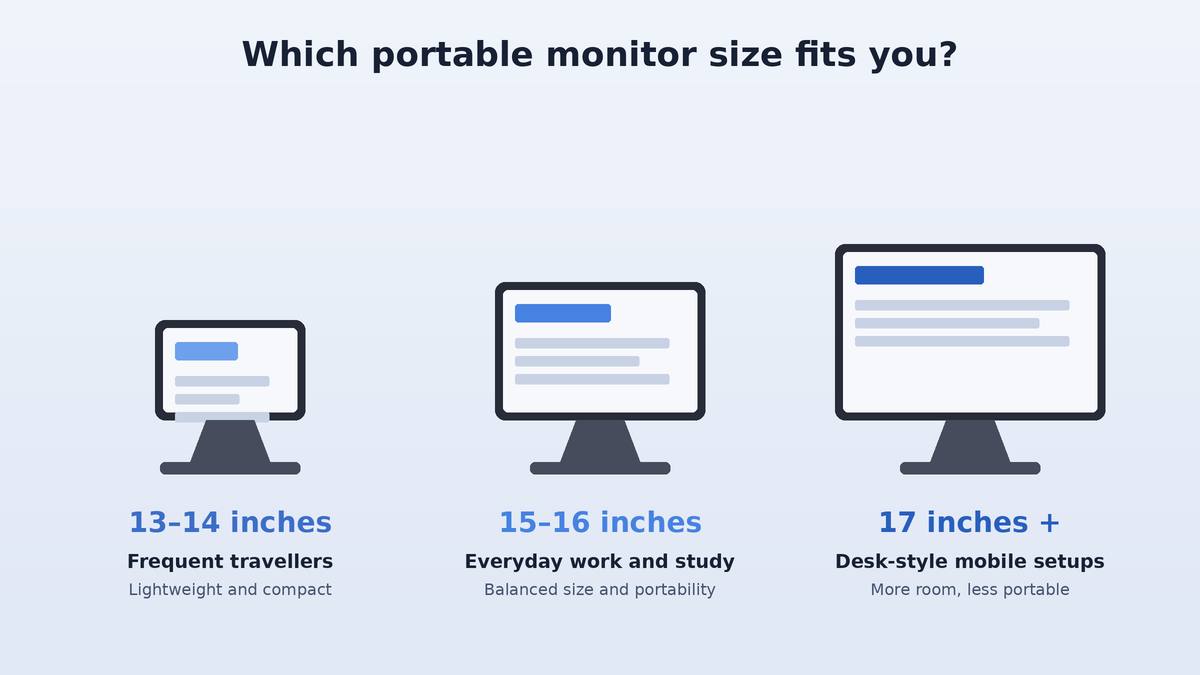
| 13–14 inches | Frequent travellers and compact setups | Less workspace |
| 15–16 inches | Students, office workers, writers and remote workers | Slightly heavier |
| 17 inches and above | Designers, video editors and users who want more viewing space | Less convenient to carry |
For most people, 14 to 16 inches is a practical range.
Resolution matters, too:
- Full HD (1920 × 1080): Enough for everyday browsing, documents, spreadsheets and online meetings.
- WUXGA (1920 × 1200): Offers extra vertical space through a 16:10 aspect ratio, which is useful for reading and coding.
- WQXGA (2560 × 1600): Provides sharper detail and more workspace, especially on a 16:10 screen.
- 4K (3840 × 2160): Useful for certain creative tasks, but often unnecessary for basic productivity on a small portable display.
If you’re editing photos or video, also pay attention to colour accuracy and colour gamut. A high-resolution display isn’t automatically a good choice for professional creative work.
When comparing the best portable monitor options, look for:
- IPS panel: Generally offers good viewing angles.
- Full HD or higher: Helps keep text clear and readable.
- 16:10 aspect ratio: Provides extra vertical room for documents and coding.
- Matte anti-glare coating: Helps reduce reflections.
- Good brightness: Important if you work near windows or in bright environments.
- Stable stand: Makes a bigger difference than you might expect when using the monitor every day.
Don’t choose a monitor just because it advertises 4K resolution. A bright, well-built Full HD or WUXGA display may be a better purchase for everyday work.
6. Disadvantages of Portable Monitors to Consider
Portable monitors are useful, but they aren’t perfect replacements for desktop displays.
Before spending your money, consider these limitations:
- Smaller screen: Most portable models are between 13 and 17 inches, so they don’t offer the viewing area of a large desktop monitor.
- Weak speakers: Built-in speakers may be fine for occasional videos, but headphones are usually better for meetings and entertainment.
- Basic stands: Folding covers and kickstands can wobble on narrow tables or airplane trays.
- Extra cables: HDMI models may need separate video and power connections.
- Battery consumption: A monitor powered by your laptop can shorten its battery life.
- Colour accuracy: Some inexpensive models aren’t suitable for professional photography or colour-critical video editing.
- Refresh rate: A standard 60Hz display is fine for office work. A 100Hz or 120Hz screen can provide smoother motion, but your laptop’s graphics hardware, connection and monitor must all support the selected refresh rate.
None of these drawbacks makes portable monitors a bad purchase. They simply mean you should choose one based on how you plan to use it, rather than buying the cheapest model you find.
7. Who Actually Needs a Portable Monitor?
A portable monitor makes the most sense when you need extra screen space but can’t keep a permanent desktop setup.
| User type | Worth buying? | Why |
|---|---|---|
| Remote workers | Yes | Easier multitasking and online meetings |
| Students | Yes | Research and notes can stay open together |
| Freelancers | Yes | Helpful when managing several projects |
| Programmers | Yes | Room for code and documentation |
| Business travellers | Yes | Extra workspace away from the office |
| Casual users | Maybe | Depends on how often they multitask |
| Light laptop users | Usually not | The built-in screen may be enough |
Business owners can benefit as well. Keeping invoices, dashboards, customer records and messages visible at the same time is often easier than flipping between browser tabs all day.
On the other hand, you can probably skip a portable monitor if you rarely leave your home or office, already own a large external display, or only need a bigger screen occasionally.
In those situations, connecting your laptop to a regular desktop monitor is often cheaper and gives you a larger screen with a sturdier stand.
Examples of Portable Monitors Worth Comparing
If you’re ready to shop, it helps to look at actual products rather than comparing specifications without context. These three models cover different needs and budgets. They are examples to consider, not a claim that one monitor is best for everyone.
1. MSI PRO MP165 E6 – A Budget-Friendly Everyday Option
The MSI PRO MP165 E6 is a 15.6-inch Full HD IPS portable monitor aimed at everyday use.
Its main specifications include:
- 15.6-inch IPS display
- 1920 × 1080 resolution
- 60Hz refresh rate
- USB-C with DisplayPort Alt Mode
- HDMI connectivity
- Weight of approximately 1.72 lb
It’s worth comparing if you mainly need extra room for documents, emails, browsing and spreadsheets. It also includes a protective pouch and built-in speakers.
MSI’s US store has listed this model at a promotional price of around $64.99. Sale prices can change, so check the current listing before buying.
2. Dell Pro 14 Plus P1425 – For Business and Travel
The Dell Pro 14 Plus P1425 is a more business-focused option.
It offers:
- 14-inch IPS display
- 1920 × 1200 WUXGA resolution
- 16:10 aspect ratio
- 60Hz refresh rate
- Two USB-C ports
- Up to 65W power pass-through
The extra vertical space is useful for documents, spreadsheets and coding. Its USB-C power pass-through is also convenient if you want a tidier laptop setup.
Dell’s US listing has shown a price around $244.99, although the price can vary with promotions and availability.
3. HP Series 5 Pro 14-inch WQXGA (514pn) – For Higher-Quality Images
If screen quality matters more than getting the cheapest option, take a look at the HP Series 5 Pro 14-inch WQXGA Portable Monitor.
Its specifications include:
- 14.36-inch display
- 2560 × 1600 resolution
- IPS Black with Neo:LED technology
- 400 nits brightness
- 75Hz refresh rate
- 100% Adobe RGB and Display P3 colour coverage
- Weight of approximately 1.4 lb
The higher resolution and wide colour coverage make it interesting for users who work with images and detailed visual content. It also supports USB-C connectivity and up to 65W power delivery.
This is a premium-oriented option, so compare its current price with other high-resolution portable displays before making a decision.
A quick buying tip: the specifications above come from manufacturer product information. They don’t replace hands-on testing, and prices are snapshots rather than guaranteed offers. Always check the latest price, warranty and compatibility details before ordering.
Related: Here are 20 Best Cloud Accounting Software in 2027
How Much Should You Spend on a Portable Monitor?
Portable monitor prices vary considerably. You can find basic displays for relatively little money, while premium OLED, 4K and specialist models can cost several hundred dollars. Current market comparisons include models ranging from around $50 to more than $700.
For a practical starting point, think about these broad price levels:
| Price range (USD) | What to expect | Best for |
|---|---|---|
| Around $60–$120 | Basic Full HD, IPS and standard refresh rates | Occasional use and simple productivity |
| Around $120–$250 | More choice in screen quality, size and connectivity | Regular work and travel |
| $250 and above | Higher resolution, premium panels, better colour or specialist features | Business and creative users |
These are approximate shopping ranges, not fixed market prices. Discounts, stock and retailer offers can change what you pay.
My advice is simple: don’t spend extra on a touchscreen, 4K resolution or a high refresh rate unless you have a clear reason to use those features. For emails, documents and spreadsheets, a reliable Full HD or WUXGA display is often enough.
Portable Monitor vs Traditional External Monitor
Still deciding between a portable monitor and a regular desktop display? Here’s how they compare:
| Feature | Portable monitor | Desktop monitor |
|---|---|---|
| Portability | Easy to carry | Limited |
| Screen size | Usually smaller | More size options |
| Setup | Quick and flexible | Usually stays in one place |
| Stand | Often basic | More adjustment options |
| Workspace | Useful for mobile setups | Better for a permanent desk |
| Best for | Travel and remote work | Home and office desks |
If you spend most of your time at one desk, a desktop monitor usually gives you more screen space for your money. But if you move between locations, a portable monitor is much easier to take along.
Portable Monitor Buying Checklist
Before placing your order, run through this checklist:
| Feature | What to look for |
|---|---|
| Screen size | 14–16 inches for everyday portability |
| Resolution | Full HD or higher |
| Connectivity | USB-C with DP Alt Mode and/or HDMI |
| Power | Pass-through support and suitable charger wattage |
| Brightness | Appropriate for your working environment |
| Weight | Light enough to carry regularly |
| Stand | Stable and adjustable |
| Warranty | Reliable manufacturer support |
| Compatibility | Confirmed support for your laptop |
One final detail: check what’s included in the box. Some manufacturers include a USB-C cable, HDMI cable, protective cover or stand, while others sell accessories separately.
Conclusion: Is a Portable Laptop Monitor Worth It?
If you work on the move, manage several applications or regularly feel restricted by a small laptop screen, a portable monitor can be a genuinely useful upgrade.
It gives you the convenience of a second display without requiring a permanent desk setup. You can use it for writing, research, spreadsheets, online meetings, coding and many other everyday tasks.
Our recommendation: for most mobile professionals, start by looking at a 14- to 16-inch IPS portable monitor with Full HD or higher resolution, compatible USB-C video support and a stable stand. If you work away from power outlets, pay close attention to power consumption and battery options.
If you only use your laptop for light browsing and occasional documents, save your money until you actually need more screen space.
The best portable monitor isn’t necessarily the biggest or most expensive one. It’s the model that works with your laptop, fits your budget and makes your everyday work a little easier.
Frequently Asked Questions
Can I use a portable monitor with any laptop?
Not always. Your laptop needs a compatible video output. USB-C usually requires DP Alt Mode or another supported display technology. HDMI works when both devices have compatible ports.
Does a portable monitor need its own power supply?
Some models can draw power from a compatible laptop USB-C port, while others need an external adapter. Check the manufacturer’s specifications before buying.
Are portable monitors good for working from home?
Yes. They provide extra screen space for video meetings, spreadsheets, emails and documents. However, if you already have a large desktop monitor, another display may not be necessary.
Can I connect two portable monitors to one laptop?
Sometimes. It depends on your laptop’s graphics hardware, supported display outputs and available ports. Check the manufacturer’s specifications before purchasing two displays.
Is a portable monitor the same as a laptop screen extender?
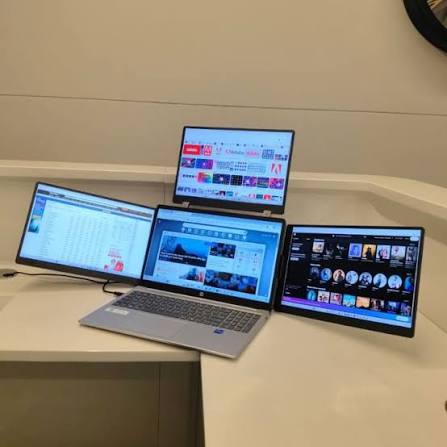
They serve a similar purpose, but the terms can describe different products. A portable monitor is a separate display, while a laptop screen extender may attach to the laptop and add one or more extra screens.
What’s the best size for a portable laptop monitor?
A display around 15 to 16 inches is a popular all-rounder. A 14-inch model is easier to carry, while a 16-inch or larger screen gives you more workspace.
Can I use HDMI with a portable monitor?
Yes, provided both devices have compatible HDMI ports. You’ll usually need a separate power connection for the monitor because HDMI doesn’t normally supply the power it needs.
Always verify exact laptop and monitor specifications before purchasing. Port capabilities, power requirements, prices and product availability vary by model and retailer.
Related: Here are What Are NFC Tags? 12 Smart Ways to Use Them