Every Mac user has been there. You downloaded an app months ago, opened it twice, and now it just sits in your Applications folder doing nothing. Maybe your storage is running low, or maybe you just want a cleaner setup.
Removing these apps is usually straightforward. In most cases, you can simply delete an app through Finder. However, some applications leave behind settings and other files, while others come with their own uninstallers or refuse to move to the Trash.
In this guide, we’ll show you how to uninstall apps on Mac using five different methods. We’ll also explain how to remove leftover files, deal with apps that won’t delete, and keep your Mac organized without accidentally removing anything important.
Related: Here are
Quick Answer: How to Uninstall Apps on Mac
If you just want the short version, here it is. For most third-party apps:
- Quit the app.
- Open Finder and click Applications.
- Check whether the app has its own uninstaller (see Method 3). If it does, use that first.
- If not, drag the app to the Trash.
- Empty the Trash when you’re sure you don’t need the app again.
That removes the main application. If you want a deeper clean, keep reading.
Before You Remove Anything: Three Things to Check
A little preparation saves a lot of frustration later.
Quit the app completely. An app that’s still running can be locked by macOS, which stops you from moving it to the Trash. Click the app name in the menu bar and choose Quit, or press Command + Q. If the app is frozen, you’ll need to force quit it, which we cover further down.
Back up anything important. Apple notes that deleting an app doesn’t delete the documents you created with it. Still, those files may need the original app to open later. If you have projects, designs, or spreadsheets tied to the app, copy them somewhere safe first.
Check for subscriptions. This one catches people out. Uninstalling an app does not cancel a paid subscription. If you pay through Apple, you can manage it from the App Store. If you subscribed on the developer’s website, you’ll need to cancel through your account there. Apple has a handy guide on managing your subscriptions.
Related: Here are 12 People Search Websites That Have Your Personal Information
Method 1: Uninstall Apps on Mac Using Finder
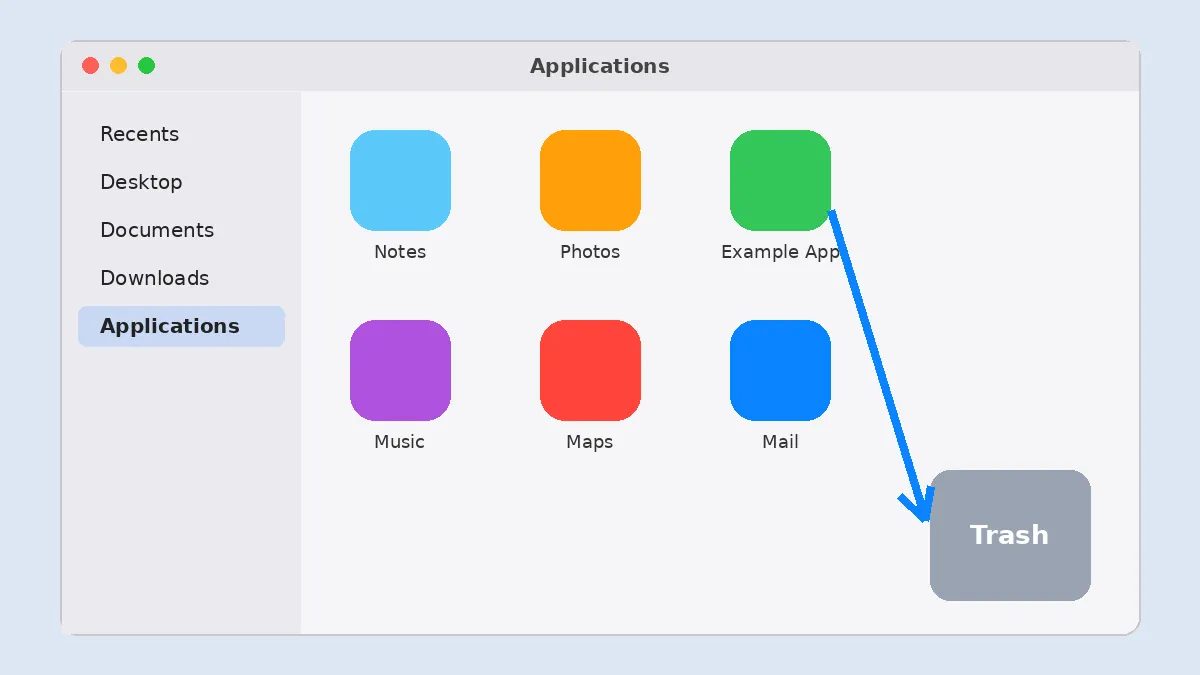
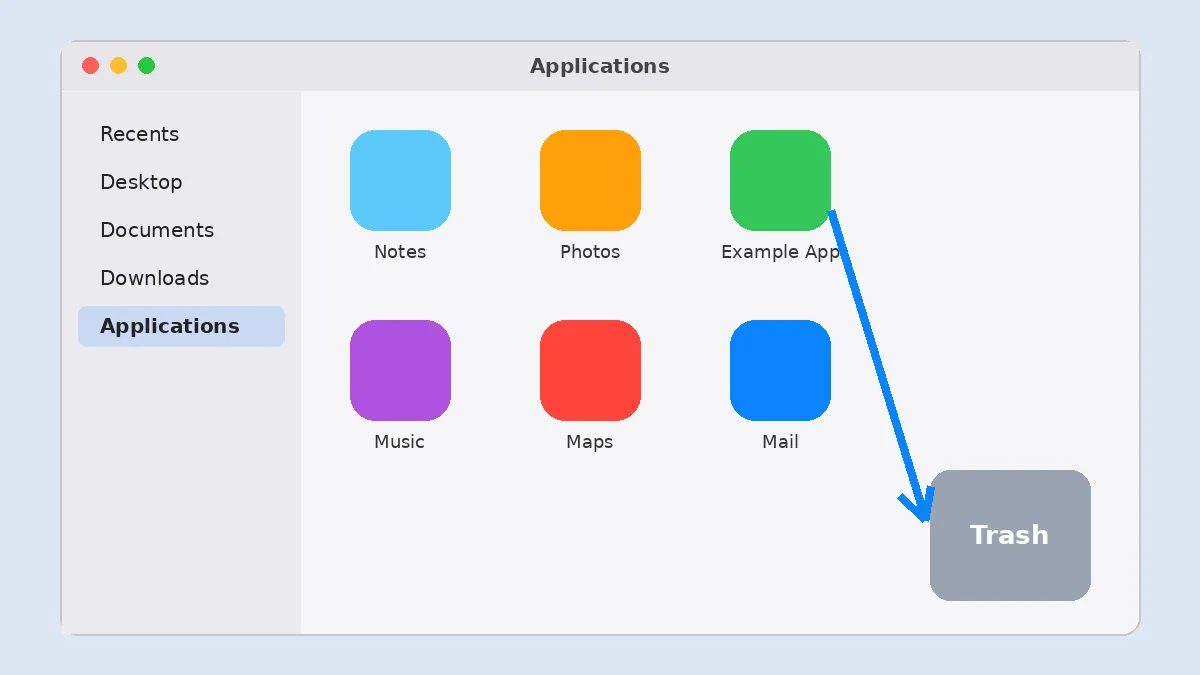
Finder is usually the easiest way to remove apps from Mac. Whether you downloaded an app from a website or installed it using a USB drive or disc, you can uninstall programs on Mac directly from the Applications folder.
Here’s how to do it:
- Open Finder from the Dock.
- Click Applications in the sidebar. You can also press Shift + Command + A to jump straight there.
- Find the app you want to remove.
- Drag it to the Trash in the Dock. Alternatively, right-click it and choose Move to Trash, or select it and press Command + Delete.
- If macOS asks for an administrator password, type it in.
- Right-click the Trash and choose Empty Trash.
Not all apps are stored in the main Applications folder. Some are kept in a separate Applications folder within your user account. If you can’t find an app, open Finder and go to Go > Home to check there.
This method removes the main app, but settings and support files may stay in your Library folder. We’ll cover how to clear those later. Also, don’t empty the Trash too quickly. Once you do, the app is gone for good and you’ll need to download it again. If you change your mind first, open the Trash, select the app, and choose File > Put Back.
Apps installed from a DMG file. A DMG is a disk image. If you opened one and dragged the app into Applications, you can remove it through Finder like any other app. You don’t need to keep the original DMG afterward, so feel free to delete it from your Downloads folder too.
For more details, see Apple’s official guide: Delete or uninstall apps on Mac.
Method 2: Delete Apps on Mac Using Launchpad

Launchpad gives you an iPhone-style way to delete apps, and it’s quick for anything downloaded from the Mac App Store.
- Open Launchpad from the Dock. It’s the silver rocket icon.
- Find the app, or type its name in the search bar.
- Press and hold the Option key, or click and hold the icon until everything starts to jiggle.
- Click the X next to the app.
- Confirm by clicking Delete.
No Trash emptying is needed here. The app is simply gone.
Important: the X button only appears for apps that came from the App Store. If you don’t see it, the app was installed another way, so use Finder or the developer’s uninstaller instead. Apps that are part of macOS won’t show an X either, and that’s intentional.
A note for macOS Tahoe users: Launchpad is no longer a normal feature in macOS Tahoe (macOS 26). Apple replaced it with the Apps app. If you’re on Tahoe, browse your software through the Apps app or Finder, and use Finder to remove things. If you’re on macOS Sequoia or an older version, Launchpad should still be there. Not sure which version you have? Click the Apple menu and choose About This Mac.
Method 3: Use the App’s Built-In Uninstaller or Settings
Not every Mac app can be removed by simply dragging it to the Trash. Programs such as antivirus software, VPNs, printer utilities, cloud storage tools, and creative applications often install additional components that run in the background. These may include extensions, login items, and support files that aren’t removed when you delete the main app.
For this reason, some developers provide a separate uninstaller with their software. It’s worth using it whenever one is available. Apple also recommends this approach because an official uninstaller can remove related components and files stored in different locations on your Mac.
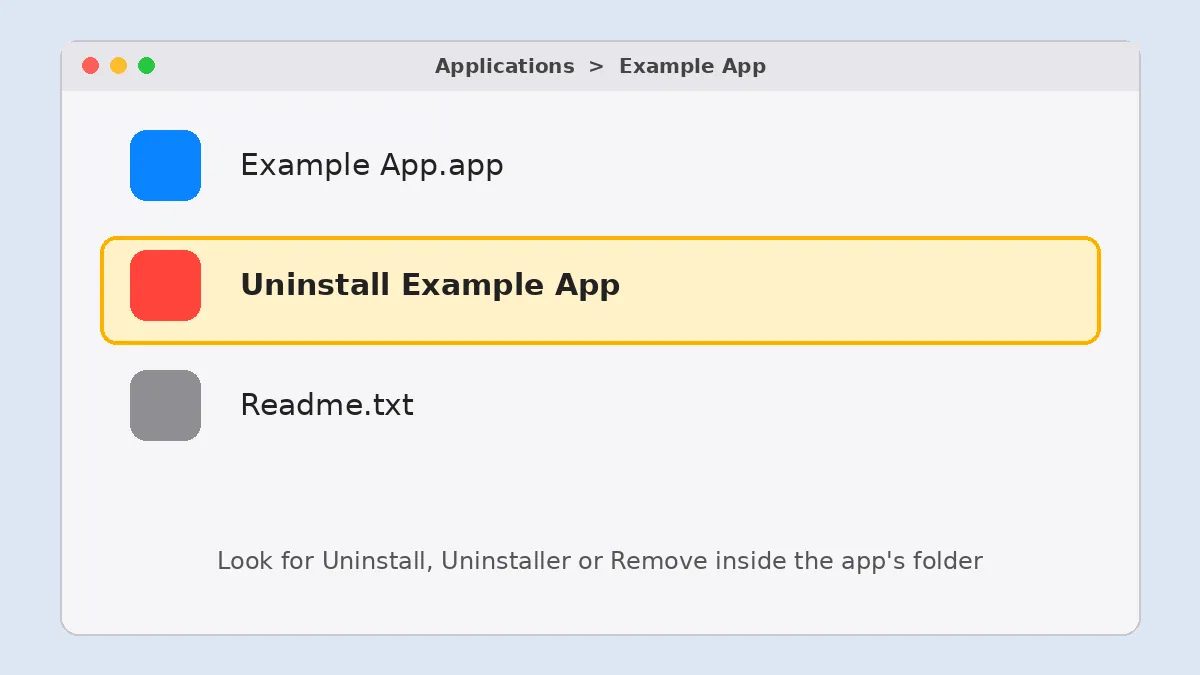
To find an uninstaller:
- Open Finder and go to Applications.
- Look for a folder with the app’s name rather than just the icon.
- Open the folder and look for something called Uninstall, Uninstaller, or Remove.
- Double-click it and follow the prompts.
If there’s nothing in the Applications folder, check the developer’s website. Some companies, including Adobe, Norton, and McAfee, publish dedicated removal tools for stubborn installations. Adobe, for example, offers a Creative Cloud Cleaner Tool.
Check the app’s own settings. Some apps don’t have a separate uninstaller but do include an uninstall, remove, or reset option inside the app itself. Open the app, click its name in the menu bar, and look under Settings, Preferences, Help, or Advanced. You might find options like Uninstall, Reset, or Delete app data. This is common with cloud storage tools and security apps, which sometimes need to remove system extensions or sign you out properly before they go. If you find an option like this, use it before deleting the app manually.
Apps installed with a PKG installer. These work differently from drag-and-drop apps. A PKG installer can add files outside the Applications folder, so deleting the app icon won’t remove everything. In this case, look on the developer’s website for an official removal tool or instructions rather than guessing.
This takes a bit more effort, but for heavyweight software it’s the safest route.
Method 4: Use a Third-Party Uninstaller
If you install and remove software often, a dedicated uninstaller can save time. These tools delete the app and scan for related leftover files in one go.
AppCleaner is a popular free option. You drag an app into its window, it lists every related file (preferences, caches, support files), and you review the list before clicking Remove. Paid alternatives like CleanMyMac bundle app removal with storage cleanup and system monitoring, and other options include AppZapper and Hazel.
A word of caution. Fake “cleaner” apps are one of the oldest scams aimed at Mac users, so only download these tools from the developer’s official website. Before installing anything, check who made it, what its privacy policy says, and which macOS versions it supports. And don’t hand over full disk access or administrator permissions unless you understand why the tool needs them.
For ordinary apps, Finder is enough. You don’t need to buy a cleaning app just to remove a few programs.
Method 5: Uninstall Apps Using Terminal (For Advanced Users)
This one is for people comfortable with the command line, and it comes with a serious warning. Files deleted through Terminal don’t go to the Trash. There’s no undo.
- Open Terminal from Applications > Utilities, or search for it with Spotlight (Command + Space).
- Type
ls /Applicationsand press Enter to see the exact names of your installed apps. - Type
sudo rm -rf(with a space after it) but don’t press Enter yet. - Drag the app from Finder into the Terminal window. This pastes the full path and avoids typos.
- Press Enter and type your administrator password.
The finished command looks like this:
sudo rm -rf /Applications/AppName.app
People use this when an app is corrupted and won’t move to the Trash normally. But one wrong character in a path can delete something you didn’t mean to touch. If that makes you nervous, trust the instinct and stick with the earlier methods.
How to Remove Leftover App Files on Mac
Leftovers are easy to forget about. When you delete an app, it often leaves behind preference files, caches, logs, and support data. These leftover app files are usually small, but they add up over time, especially with large apps like video editors, games, and design tools. Clearing them is one of the best ways to free up storage space on Mac.
Where leftovers hide
Most of them sit in your user Library folder, which macOS hides by default:
| Folder | What it holds |
|---|---|
| Application Support | Settings, databases, and support data |
| Caches | Temporary files that can grow surprisingly large |
| Preferences | Saved settings, usually ending in .plist |
| Logs | Diagnostic records |
| Saved Application State | Window positions and session data |
| Containers | Data for sandboxed apps |
| LaunchAgents | Background items and startup processes |
How to open the Library folder
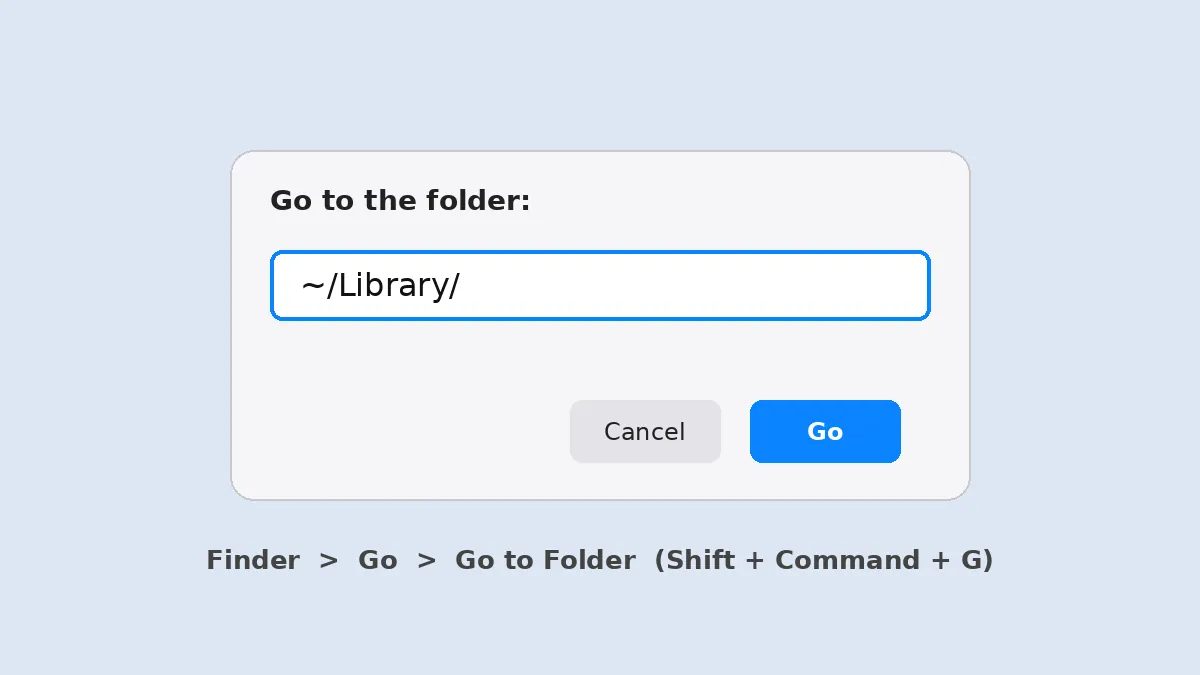
- Open Finder.
- Click Go in the menu bar.
- Choose Go to Folder (or press Shift + Command + G).
- Type
~/Library/and press Return.
[Image: The Go to Folder box with ~/Library/ typed in. Alt text: “Opening the hidden Library folder on Mac using Go to Folder”]
How to clean up safely
Look inside the folders above for files named after the app or its developer. Say you removed an app called PhotoPro, made by a company called PixelWorks. You might find a PhotoPro folder in Application Support and a file called com.pixelworks.photopro.plist in Preferences. Those are safe to move to the Trash.
But don’t delete based on a partial name match, because not every app uses obvious names. If you aren’t sure a file belongs to the app you removed, leave it alone. A stray 2 KB preference file does no harm, while deleting the wrong file can cause real trouble. Be especially careful with Group Containers, LaunchDaemons, Keychains, and anything belonging to Apple, since some files are shared between apps.
For antivirus tools, VPNs, and cloud storage apps, skip manual cleanup entirely and use the developer’s official uninstaller.
One more place to check: System Settings > General > Login Items & Extensions. Some apps linger in your startup list even after removal, so remove any entries for apps you’ve deleted.
Mac Won’t Delete App? Here’s What to Try
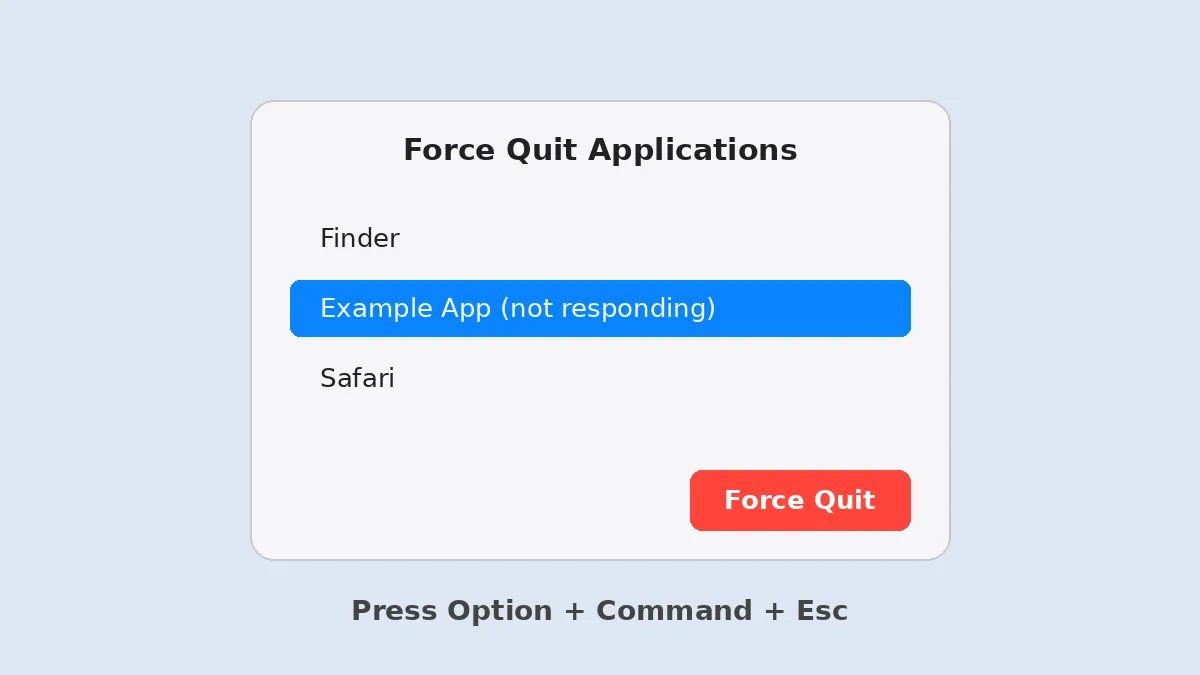
Sometimes macOS refuses to cooperate. You might see a message saying the app is open, in use, or can’t be modified. Work through these fixes in order.
1. Force quit the app. Press Option + Command + Esc, select the app, and click Force Quit. Then try moving it to the Trash again. Be aware that force quitting can lose unsaved work.
2. Restart your Mac. A background process may keep running after you close the main window. A restart usually stops it. Check the Dock too; a small dot under an icon means the app is still running.
3. Check Activity Monitor. Press Command + Space, search for Activity Monitor, and look for a process with the app’s name. If you find one that clearly belongs to it, select it and click the Stop button. Don’t terminate unfamiliar system processes. If you aren’t sure what something does, leave it running.
4. Try Safe Mode. If the app still won’t go, Safe Mode can help. On an Apple silicon Mac, shut down, then hold the power button until startup options appear, select your startup disk, hold Shift, and click Continue in Safe Mode. On an Intel Mac, restart and immediately hold Shift until the login window appears. Apple has a full walkthrough of Safe Mode instructions if you need more detail.
Can You Uninstall Built-In Apple Apps?
Not all of them. Apps that are part of macOS, such as Safari, Mail, Messages, Photos, Notes, Maps, Music, FaceTime, and System Settings, are protected by the operating system. Apple also reserves the System folder for macOS, so apps stored there can’t be deleted through Finder.
Please don’t try to force-remove them with Terminal or third-party tools. It can cause unexpected problems with macOS. If you don’t use one of these apps, just take it out of your Dock, or set a different default. For example, you can simply choose another browser instead of Safari.
Stop Apps from Opening Automatically
Sometimes people uninstall an app only because it keeps launching at startup. If that’s your situation, you may not need to remove it at all.
- Open the Apple menu and choose System Settings.
- Click General.
- Open Login Items & Extensions.
- Find the app under Open at Login.
- Select it and click the minus button.
This is a quick fix for slow startups. Apple explains it in more depth in its Login Items guide.
Can You Reinstall an App Later?
In most cases, yes. For App Store apps, open the App Store and look through your purchased items. For apps from a developer’s site, download the latest compatible version from the official website. Avoid unofficial download sites, which often bundle software you didn’t ask for.
If you plan to reinstall, remember that deleting an app’s support files may remove locally stored data. Back up important projects first.
Common Mistakes to Avoid
- Deleting an app while it’s still open. Quit it first.
- Emptying the Trash too quickly. Give yourself a day or two in case you change your mind.
- Ignoring the official uninstaller. If one exists, use it.
- Assuming deletion cancels a subscription. It doesn’t.
- Deleting unknown files from the Library. When in doubt, leave it.
- Downloading random cleaner tools. Stick with trusted, official sources.
Which Method Should You Use?
| Situation | Best method |
|---|---|
| App came from the Mac App Store | Method 2: Launchpad (or Finder on Tahoe) |
| App came from a website, USB drive or disc | Method 1: Finder |
| App includes an uninstaller, a PKG installer, or an uninstall option in its settings | Method 3: Built-in uninstaller or settings |
| You remove apps often and want leftovers found automatically | Method 4: Third-party uninstaller |
| App is corrupted and won’t delete | Method 5: Terminal (with care) |
| App is part of macOS | Don’t delete it |
Frequently Asked Questions
Does dragging an app to the Trash completely uninstall it?
Not entirely. It removes the main application, but settings, caches, and support files usually remain in your Library folder. Use the developer’s uninstaller or clean the leftovers manually for a fuller removal.
Why can’t I delete an app on my Mac?
The app may still be running, may need administrator permission, or may be protected by macOS. Quit it, restart your Mac, and try again. If the developer provides an uninstaller, use that.
How do I uninstall programs on Mac that were downloaded from the internet?
Open Finder, go to Applications, and check whether the app has its own uninstaller. If it does, run it. If not, move the app to the Trash and empty it when you’re ready. For apps installed with a PKG installer, check the developer’s website for removal instructions.
How do I delete apps on Mac that don’t have an X button?
The X in Launchpad only shows for App Store apps. For everything else, open Finder, go to Applications, and move the app to the Trash.
Will uninstalling an app delete my documents?
No. Files you created with the app generally stay put, though you may need the original app to open them later.
Is Launchpad still available in macOS Tahoe?
No. macOS Tahoe replaced it with the Apps app, so use Finder to remove software. Older versions like Sequoia still have Launchpad.
Is it safe to use Terminal to uninstall apps?
It can be, if you’re careful. Double-check the file path before pressing Enter, because Terminal deletions are permanent.
How do I free up storage space on Mac after deleting apps?
Empty the Trash, then check the Caches and Application Support folders in your Library for anything clearly left over from the apps you removed.
Final Thoughts
Knowing how to uninstall apps on Mac keeps your computer tidy and your storage under control. For quick jobs, Finder or Launchpad will do. For complex software, look for an official uninstaller first. And if you want a thorough cleanup, take a few extra minutes to check your Library folder, carefully and only for files you’re sure about.
Do this every few months and your Mac will stay fast, organized, and free of the clutter that slowly builds up over time.
Related: Here are What Are NFC Tags? 12 Smart Ways to Use Them